
Remove Watermark from Video
Online AI tool that cleans watermarks off videos you own. It rebuilds the area behind the mark instead of blurring or cropping it.
What is Remove Watermark from Video?
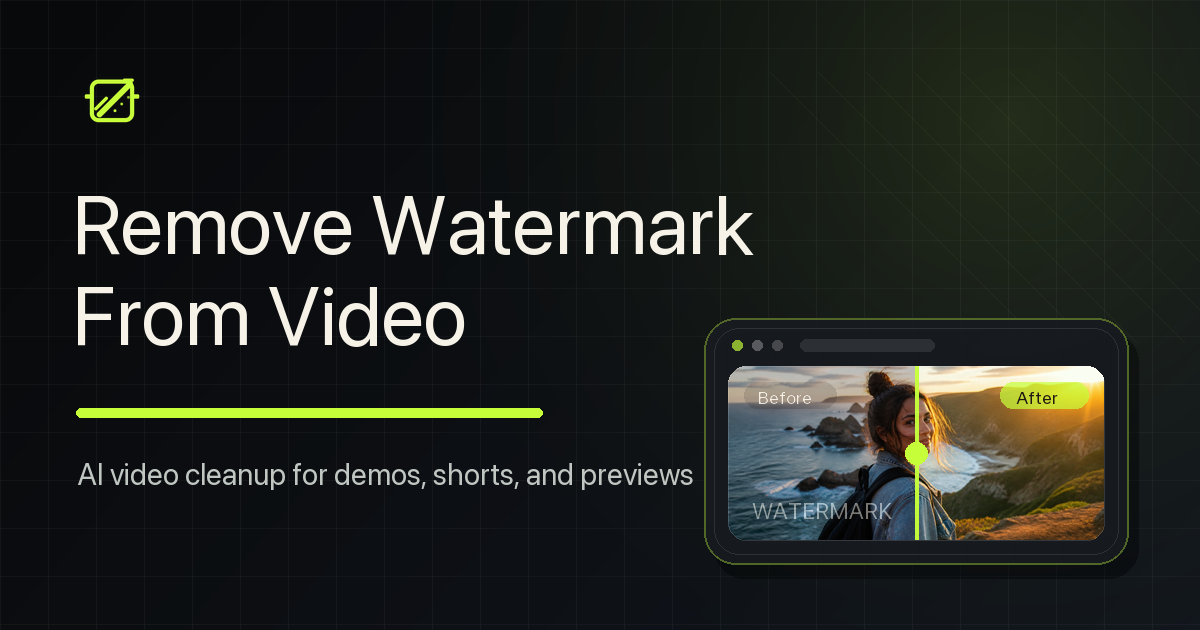
Remove Watermark from Video is a browser-based AI video watermark remover. It detects watermarks, logos and text overlays automatically and rebuilds the area behind them instead of blurring or cropping, so your own clips keep their original framing. There is nothing to install, no manual masking, and you pay per second of video with credits; failed jobs are refunded.
Remove Watermark from Video Core Features
AI watermark removal that rebuilds the background (no blur, no crop)
Automatic watermark detection — no manual masking
Works in the browser with MP4, MOV and WebM up to 100 MB / 10 minutes
Who is Remove Watermark from Video for?
Creators repurposing their own clips across TikTok, Instagram Reels, YouTube Shorts and other platforms, and brands cleaning old logos off their own videos. Only for content you own or have permission to edit.
Remove Watermark from Video Use Cases
Reposting your own TikTok videos to Reels or Shorts
Cleaning your own CapCut exports
Removing old logos from your brand videos
Remove Watermark from Video Pros and Cons
Pros
- Keeps the original framing instead of cropping
- Nothing to install; runs in the browser
- Credits charged per second and failed jobs refunded
FAQ About Remove Watermark from Video
Remove Watermark from Video Alternatives

TapVid
TapVid is an AI explainer video engine built for product teams. Paste a prompt or upload a PDF, doc, URL or PPT, review the generated outline and script, then edit individual scenes by typing. Assets and copy stay exactly as supplied, a Brand Kit applies your fonts and colours. Paid plans export watermark-free 1080p, and a REST API plus MCP server handle batch work.

VideoBGRemover
Remove backgrounds from recorded videos online. Keep motion and audio, export transparent WebM or MP4. Free trial and paid plans.

BGChanger AI
Remove video backgrounds with AI, export transparent WebM or solid-color clips, keep original audio, and choose MP4, WebM, MOV, MKV, or GIF.