FocuSee Screen Recorder Review: Features, Pricing & Limits

WithAI.Top Editorial Team
A useful software demo has to do more than capture a screen. Viewers need to see the right button, follow the cursor, hear the explanation and understand what changed. Getting those details right is often where a two-minute recording turns into an afternoon of editing.
FocuSee is worth considering if you regularly make product demos or software tutorials and want automatic zoom, cursor effects and visual styling in the same desktop workflow. Its buying decision is less straightforward: the desktop trial and free online recorder have different rules, advanced AI uses credits, and a lifetime license has a major-version boundary.
This FocuSee screen recorder review explains those tradeoffs, the current prices, the Gemoo-to-iMobie history, audio and project troubleshooting, and how it compares with Screen Studio, Tella and free alternatives.
Review scope: Updated November 4, 2026. This is a research-based evaluation of current official documentation, publicly visible product pages and a small selection of attributable user reports. The website screenshots were captured for this article; desktop interface images come from FocuSee's official guides.
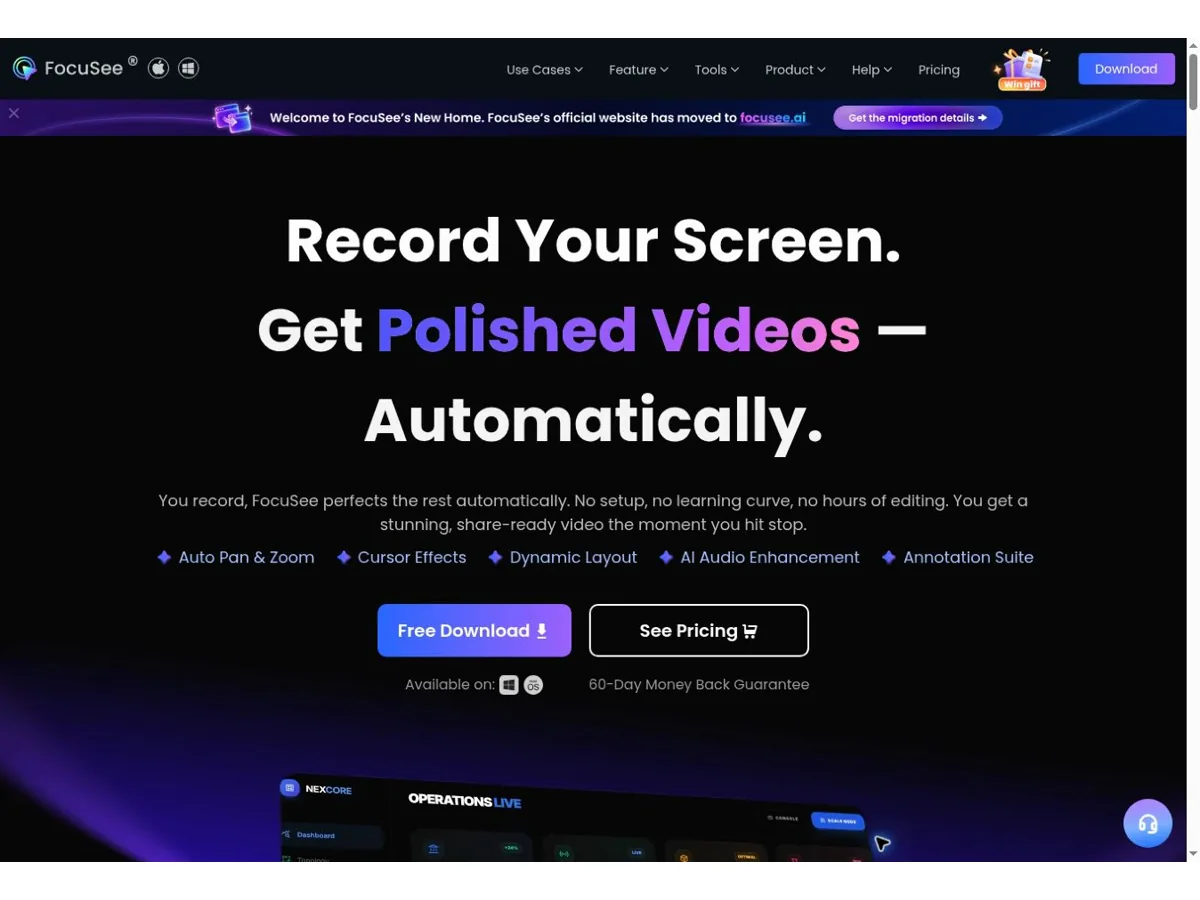
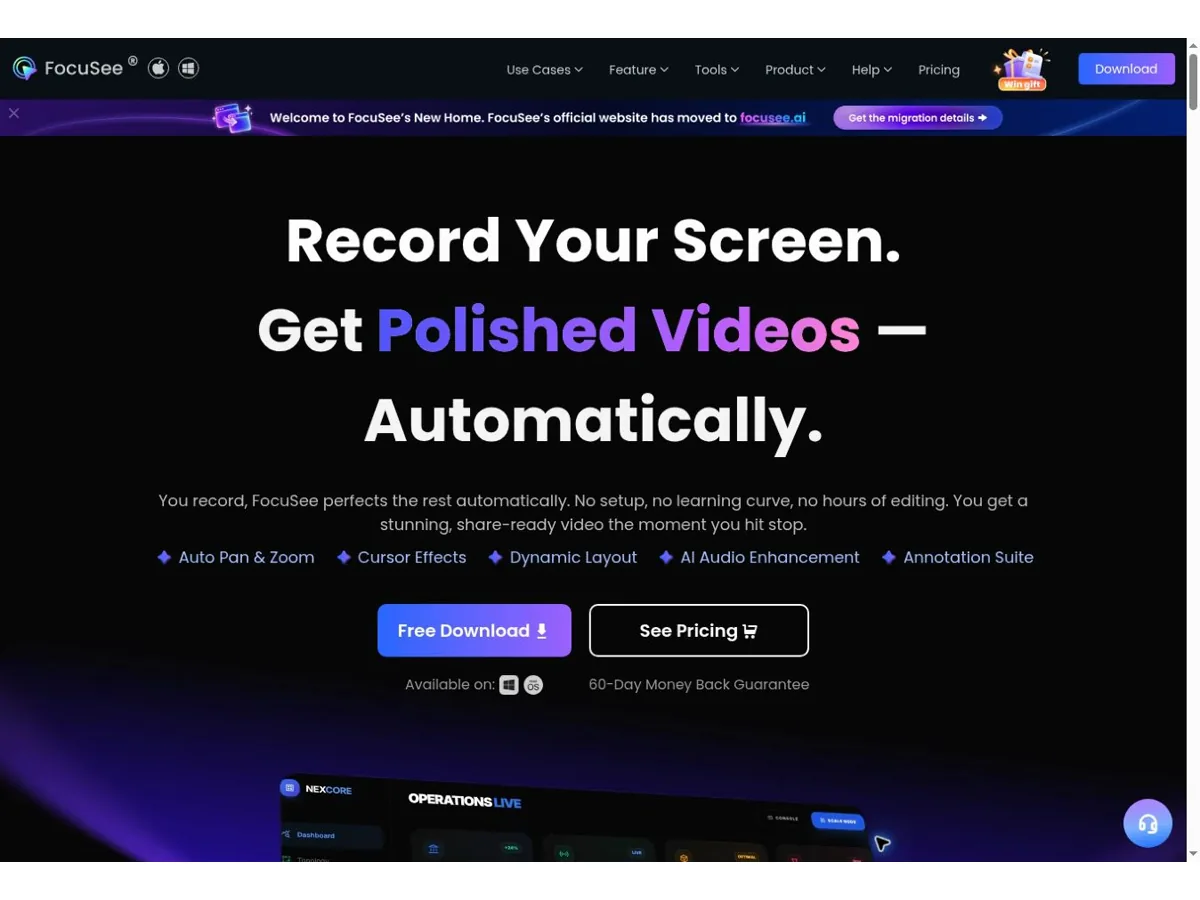
FocuSee's official homepage, captured November 4, 2026. Website image and product branding: FocuSee / iMobie.
FocuSee review at a glance
The strongest reason to try FocuSee is the job it combines: capture an interaction, direct the viewer's attention and export a presentable video. If your videos are mostly clicking through an application with spoken explanation, those are closely related tasks. If your work revolves around complex film editing, live production or team feedback, the comparison changes.
| Question | Short answer |
|---|---|
| Who should shortlist it? | Solo software founders, tutorial creators and people making repeatable customer walkthroughs. |
| What stands out? | Automatic zoom and cursor treatment, plus layouts, annotations and editing in one workflow. |
| What platforms does the desktop app support? | Windows and macOS; a separate online recorder runs in the browser. |
| Is FocuSee free? | The desktop trial allows one watermarked export. FocuSee Online advertises free, watermark-free recording. |
| What is the current entry price? | Standard is listed at $49.99 per year or $19.99 on monthly billing. |
| Is there a lifetime option? | $199.99 for the listed five-computer Advanced plan, with access to FocuSee 2.x. |
| What needs extra attention? | AI credit expiry, future major upgrades, imported-video limitations and your own audio/display setup. |
The factual entries above are grounded in the product site, billing FAQ, pricing terms and separate online recorder page. Prices are a dated snapshot, not a promise about a later checkout.
Our recommendation: use the trial on a short version of the task you actually repeat, then judge the corrections needed and the exported result.
What is FocuSee? Gemoo, iMobie and the official website
FocuSee is a screen recorder with editing focused on making software interactions easier to follow. Its desktop workflow includes screen, camera and audio capture, followed by adjustments to framing, zoom, cursor presentation and the surrounding video design. The official guide is a better guide to its current scope than an old list of launch features.
Why do people search for “Gemoo FocuSee” and “iMobie FocuSee”?
They are historical and current references to the same product line. iMobie's migration support page says it acquired FocuSee in November 2024. The acquisition notice described transferring accounts and benefits from Gemoo.
That history affects more than the logo. The notice said future iMobie versions would stop uploading directly to Gemoo Cloud; existing customers could export a video and upload it manually. Older reviews may therefore describe a different sharing route. This historical change should not be confused with the current product's documented sharing options.
The public FocuSee homepage now uses focusee.ai, and its visible banner identifies it as the new official home. Earlier official links using focusee.imobie.com remain common in search results. For downloads, follow the current official site's Download link rather than assuming that a similarly named domain or file mirror is equivalent.
Is this a FocuSee 2.0 review or a newer version review?
The article covers the documented 2.x product and terms visible on the review date. The official changelog lists Windows 2.5.2 on October 15, 2026 and separate platform releases. A feature or bug described in a 1.x or early 2.0 review may no longer describe your installation.
For any compatibility question, record both the app version and operating system. “Works on Mac” is not a substitute for checking your display arrangement, audio devices and installed build.
Is FocuSee free? Desktop trial vs. FocuSee Online
There are two different answers because there are two different offerings. The desktop software's billing FAQ permits recording and editing in the free version, with one watermarked video export. An activated plan removes that export limitation and the product watermark. A free installer is therefore an opportunity to try the desktop workflow, not unlimited access to the paid plan.
FocuSee Online is separately advertised as free, without a watermark or account requirement. Its page describes browser-based screen, camera and microphone capture and adding zooms after recording. The browser's resources and the device's memory still matter; “free” does not remove those practical constraints.
| What you need | Desktop trial | FocuSee Online |
|---|---|---|
| Explore the installed editing workflow | Appropriate starting point | Different browser workflow |
| Produce a free watermarked sample | One export is documented | Page advertises no watermark |
| Record without installing the desktop app | No | Yes |
| Evaluate paid desktop AI and licensing | Check the relevant paid feature and credit requirement | Do not infer desktop entitlements from the online tool |
| Make an occasional simple recording at zero cost | Trial export restrictions matter | Worth checking first |
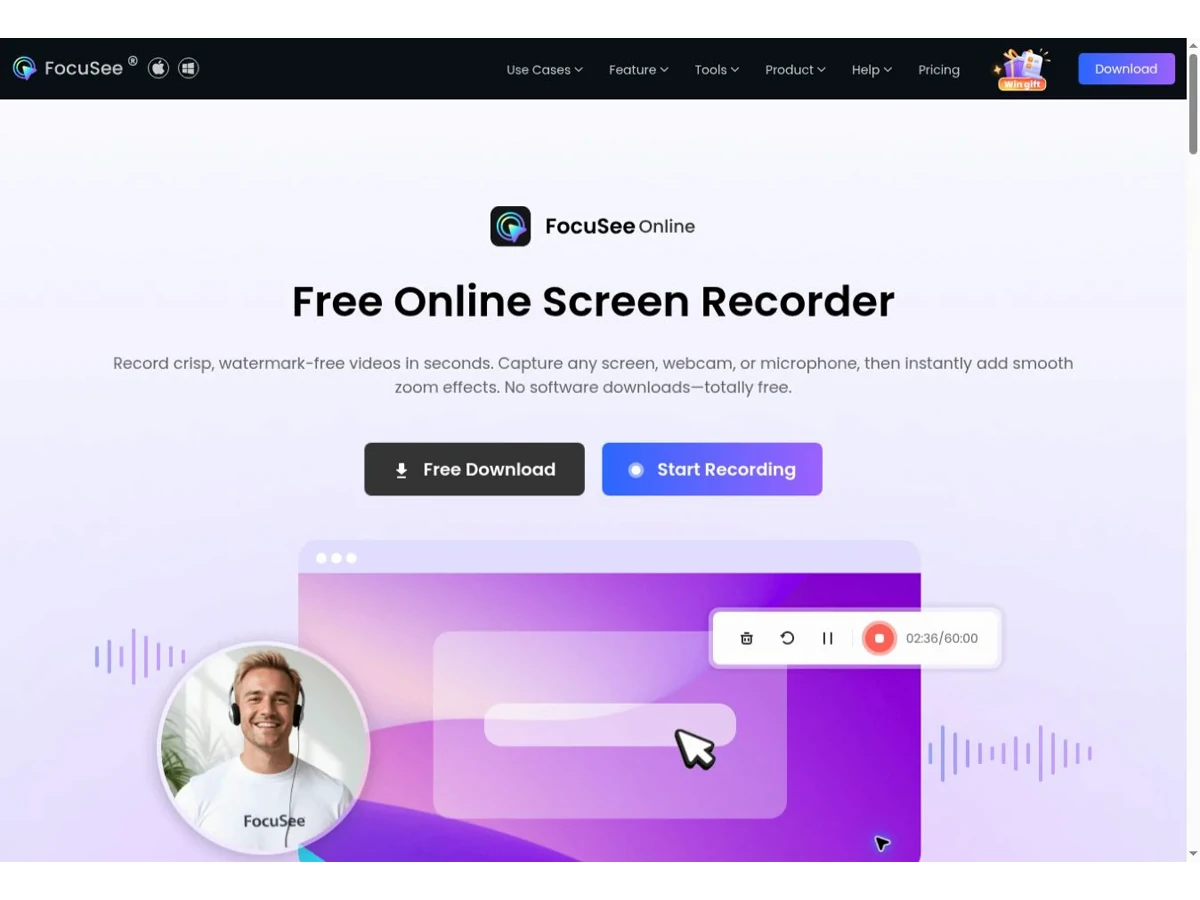
The online recorder is a separate offer. This website screenshot does not demonstrate a completed recording or verify every browser's audio behavior.
The practical choice is simple. If you need one quick explanation, try the online recorder before deciding you need a desktop subscription. If you expect to revise projects and make a consistent series of demos, evaluate the installed app. Do not spend the desktop trial's export on a throwaway capture: include the details that matter to your real work.
Who is FocuSee most useful for?
The following are editorial fit assessments, not claims about the percentage of FocuSee customers in each group.
A solo founder publishing a product update
Imagine explaining a new dashboard filter in a ninety-second video for your homepage. The important work is showing where to click, making the changed result visible and keeping the presentation consistent with the rest of your site. That is a close match for a recorder with zoom and layout controls.
Your success criterion should be whether the viewer understands the feature. A dramatic camera move that hides the result is a poor trade, even if it looks polished.
A tutorial creator teaching a detailed workflow
A code walkthrough or design tutorial needs readable small text, accurate narration and enough context to understand the sequence. Zoom and captions can help, but they also create review work: terminology must be corrected, and tightly cropped frames may need adjusting. FocuSee is appealing when those tasks can remain inside one project.
A support specialist or freelancer delivering an explanation
For a customer setup or a website handover, the quickest useful video may be the best one. Consider how often you need annotations, privacy masking and reusable styling. Also consider how the recipient will respond. If comments and shared review matter more than a downloadable finished video, examine Loom and Tella alongside FocuSee.
A marketer turning one demo into several formats
A landscape website demo and a portrait social clip may use the same recording, but they do not have the same composition. Treat each output as its own viewing experience. The relevant value is how easily you can retain the crucial action, readable captions and a sensible camera position after changing the layout.
How to download and activate FocuSee
Use the official FocuSee site and choose the appropriate Windows or Mac download. The purchase FAQ also lists the Microsoft Store and Mac App Store, with iMobie Inc. identified as the developer. Store, reseller and direct-purchase benefits should be checked against the actual offer you buy.
For a direct purchase, the normal activation route is to sign in using the email associated with the order. The activation guide separately documents codes supplied through partners; not every buyer needs to search for a license key. If an existing purchase is not recognized, use the account checks in the troubleshooting section before buying again.
Queries about a FocuSee crack, patch, activation-code generator or group-buy account often point to a desire for a lower price. The legitimate zero-cost routes discussed here are FocuSee Online and free alternatives such as OBS. They let you make that budget decision without relying on an unverified download or someone else's account.
Recording with FocuSee on Windows, Mac and mobile
Choose the capture area and audio sources first
FocuSee offers three desktop capture modes: full screen, a selected window, or a custom area. You can combine the screen with a webcam, microphone, and system audio, selecting the devices independently. System audio can also be restricted to a selected application, according to the recording guide.
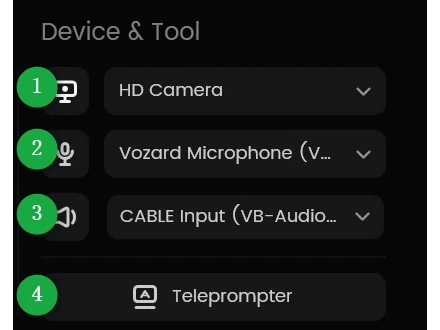
Recording setup shown in the official recording guide. Interface image: FocuSee / iMobie.
For a software walkthrough, a window or custom area usually makes the explanation easier to follow: viewers see the relevant interface without an entire desktop surrounding it. Full-screen capture makes more sense when the process moves between applications. Decide which applies before recording, then check both the microphone and computer-audio selections. A quick spoken introduction followed by a sound from the application provides a useful configuration check.
The documented requirements are Windows 10 or later, or macOS 10.15 or later, with at least 8GB RAM. FocuSee recommends macOS 12.3 or newer for the best experience and supports both Intel and Apple Silicon Macs. These are compatibility requirements, not a promise that every qualifying computer will handle demanding recordings equally well. See the system requirements.
Mobile recording has a different workflow
FocuSee can record connected phones through its desktop Device mode. The Android guide specifies Android 11 or later, a USB connection, and USB debugging. The iPhone/iPad guide specifies iOS 10 or later, a USB connection, and trusting the computer; Windows users may also need the documented Apple and screen-mirroring drivers. The webcam and microphone come from the computer. Android guide · iPhone/iPad guide
Both guides state an important limitation: mobile recordings do not receive automatic zoom effects, and cursor effects and shortcut-key displays are unavailable. You can add zooms manually afterward. That makes mobile capture useful for an app demonstration, but you should budget some editing time to emphasize taps and small interface details.
On Android 11, keep the device unlocked: the Android guide warns that locking it during recording can cause device audio to be lost. Check the phone’s screen behavior before recording a longer demonstration.
Automatic zoom, cursor effects and visual editing
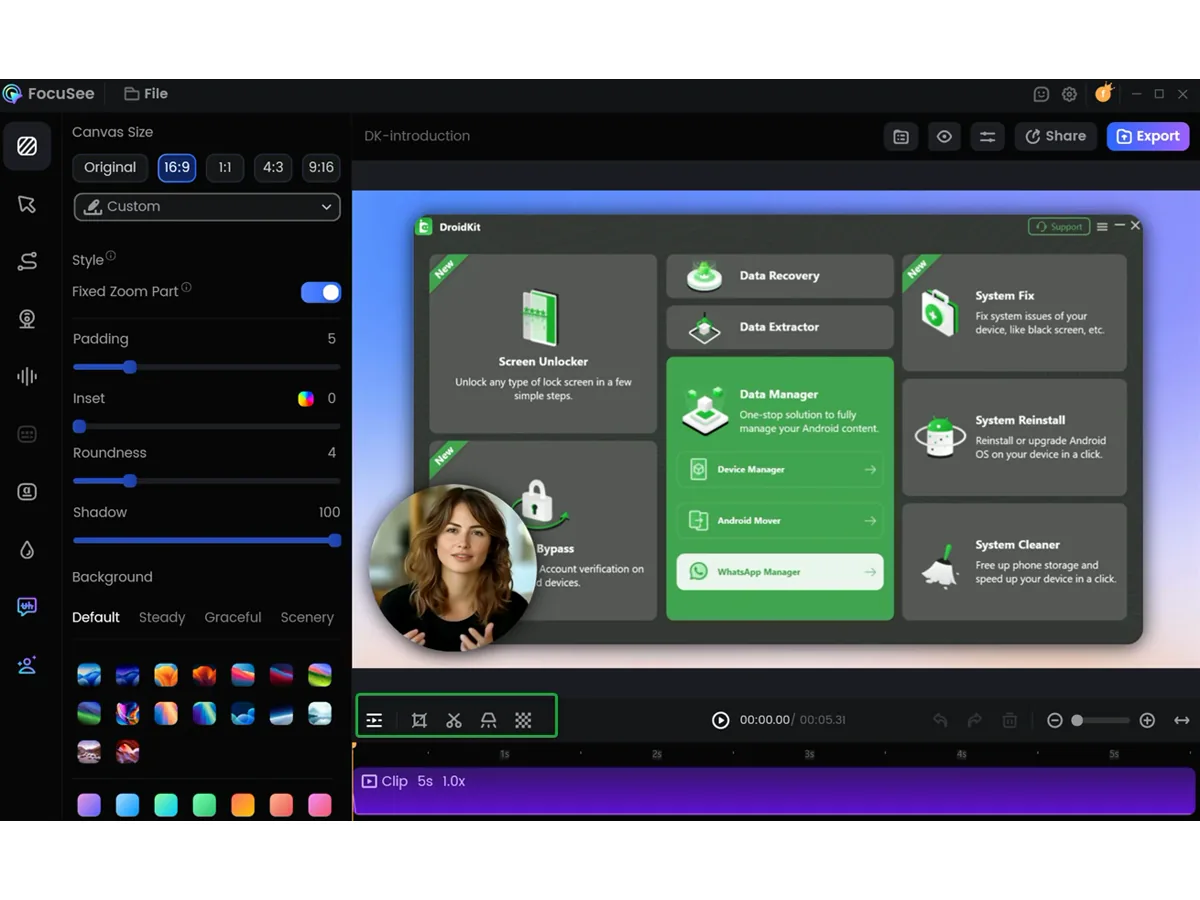
The editing workspace, reproduced from the official recording guide. Interface image: FocuSee / iMobie.
Automatic zoom still benefits from editorial judgment
FocuSee generates zoom effects for desktop recordings and exposes them as editable timeline elements. You can disable an unwanted zoom, change its scale or position, and add another at a chosen point. These controls matter because the automatically selected view may need adjustment to preserve context. The editing guide documents these options.
For example, a close-up of a settings menu helps someone read a small option. Staying tightly cropped after the menu closes may prevent them from seeing the result. Keep zooms around decisions and return to a wider view when showing outcomes. The controls allow that correction; how often you need it depends on the recording.
Cursor controls can make instructions easier to follow
The cursor panel includes size and appearance, click animations, optional click sounds, movement smoothing, and automatic hiding during inactivity. You can also adjust cursor direction and its position at the end of a video. See the cursor-effect guide.
For a tutorial, start with a clearly visible pointer and a restrained click indicator. Increase emphasis when the audience needs to distinguish several small controls. Click sounds are optional and may add little when the narration already explains each action. Idle hiding is useful during reading pauses, provided the pointer is not itself indicating the item being discussed.
Use 3D motion and annotations for different purposes
FocuSee’s 3D Motion adds perspective and tilt. It can replace a 2D zoom clip, with adjustable intensity and manual positioning. Automatic generation requires mouse-click activity; without detected interaction, the guide describes a manual mode. 3D Motion guide
Use this effect selectively in a short product introduction. For dense spreadsheets, code, or a sequence of precise settings, a stable view is often the more useful editorial choice. Movement earns its place when it helps explain what changed.
Annotations provide more direct instruction: text, arrows, shapes, spotlights, blur, magnifiers, and callouts. Their position and appearance can be adjusted on the canvas and timeline. A callout can enlarge one detail while keeping the surrounding interface visible; blur can conceal a sensitive area. See the annotation guide.
Before publishing, review those elements throughout their duration. An arrow should remain attached to the intended control, and a privacy mask should cover the information whenever it appears. Adding an effect is only the first part of making an explanation clear.
Subtitles and AI audio tools
Local captions and advanced subtitles are separate options
FocuSee offers a Local Model for captions without consuming AI credits, with Nano, Basic, and Pro modes. The guide lists supported languages including English, Japanese, Korean, and simplified and traditional Chinese. You can correct the text and adjust its presentation after generation. Local captions guide
The Advanced Model uses credits and is positioned as offering broader language support and higher recognition accuracy. FocuSee describes this as an online model in its documentation. Consequently, the existence of local captioning does not establish that every AI feature operates offline. AI subtitles guide · Official guide index
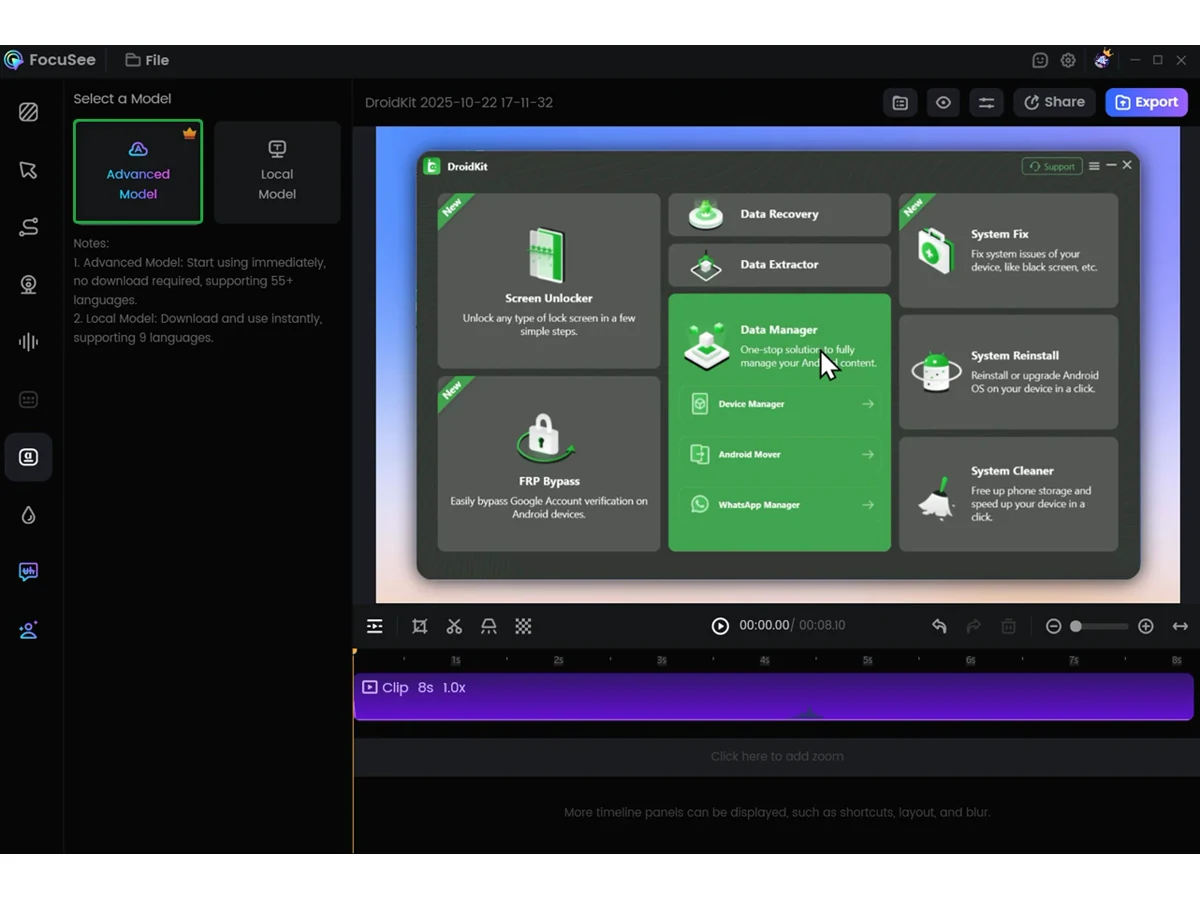
Local and advanced recognition choices in the official subtitle guide. Interface image: FocuSee / iMobie.
For an English tutorial, local captions are a sensible starting point if they meet your needs. Review product names, numbers, and interface labels regardless of the model. A subtitle that misstates a button name can make an otherwise clear demonstration harder to reproduce. Generating captions also should not be confused with automatically translating the narration into another language.
Smart Cut removes pauses and fillers through a transcript
Smart Cut identifies silences and filler words, highlights them in a transcript, and lets you review the selected segments before deletion. It also provides a reset option. An especially useful detail in the Smart Cut guide: existing generated subtitles can be reused without another recognition charge, while recognizing the audio again consumes credits and does not synchronize the new recognition results with the subtitles module.
This can reduce repetitive cleanup, but keep pauses that serve the lesson. A short gap while a learner examines a chart is different from an accidental hesitation. Preview the transitions after making cuts so the spoken explanation still matches the visible action.
Noise reduction and vocal enhancement address different adjustments
The audio panel separates microphone and system-audio controls, with microphone noise reduction and a distinct Vocal Enhancement option. The latter processes microphone audio to adjust voice characteristics and uses AI credits. Audio controls · Vocal Enhancement guide
Choose processing according to the problem you hear. Background hum calls for a different judgment from uneven narration volume. Keep the version that preserves intelligibility and a natural voice; the availability of an enhancement button does not guarantee that maximum processing suits every recording.
Importing videos, editing projects, exporting and sharing
Existing videos can be imported, with a codec restriction
You do not have to record every clip inside FocuSee. File > Import Video to Create Project accepts existing videos, but the current documented requirement is MP4 encoded with H.264. Importing creates a separate editable project without overwriting the source. See the import guide.
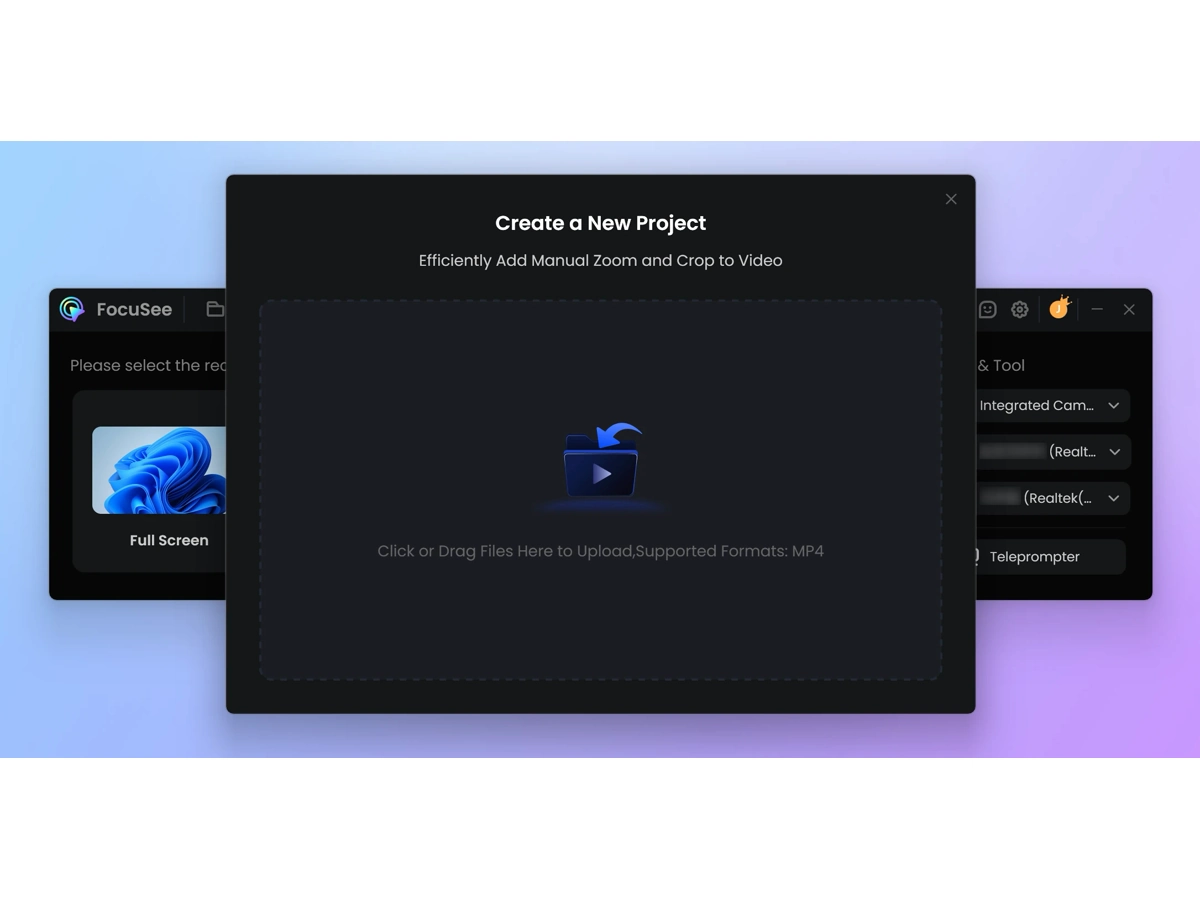
Importing an existing video, as shown in the official import guide. Interface image: FocuSee / iMobie.
This is useful when you already have a recording that needs framing or annotations. However, an MP4 filename alone does not establish compatibility: MP4 is a container, and the encoding must also meet the requirement. Retain the source file when preparing a compatible copy.
Keep the layout appropriate to the destination
The editor supports cropping, splitting clips, changing playback speed, and adjusting the canvas. Background styling includes padding, rounded corners, shadows, and background blur. Editing controls
A framed desktop looks attractive in a promotional clip, but generous padding makes the actual interface smaller. For detailed instruction, give the application enough of the canvas that labels remain readable on the viewer’s likely screen. The same concern applies when adapting a wide desktop recording to a vertical format: an attractive background cannot compensate for unreadable text.
Exported videos and editable projects serve different purposes
FocuSee exports MP4 and GIF, with resolution choices up to 4K and an Original option. Export settings also include frame rate and quality. MP4 is the appropriate choice for a narrated tutorial; a short GIF is better suited to a silent interface illustration. The export guide also documents project history and source-file extraction.
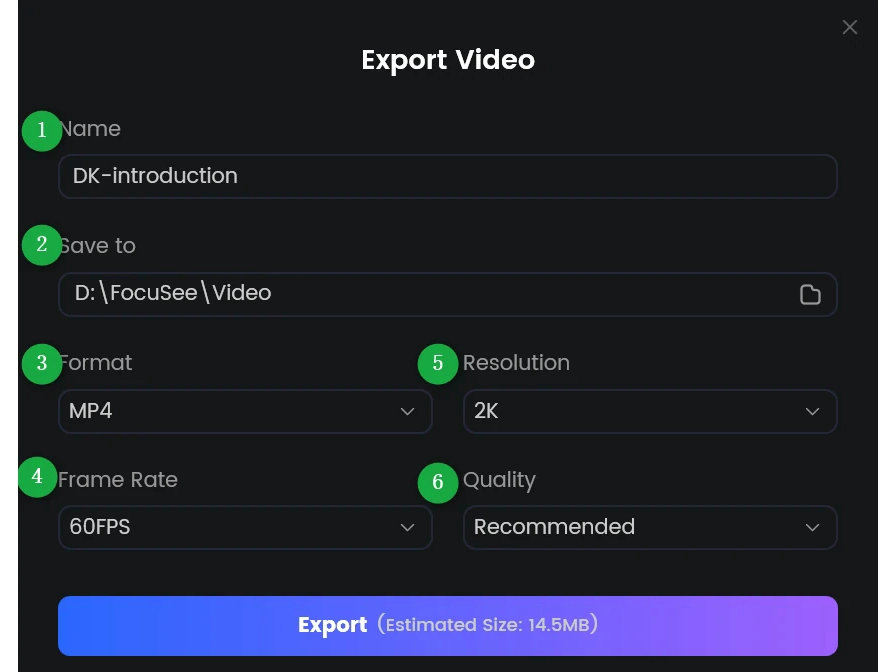
Export settings shown in the official recording guide. Interface image: FocuSee / iMobie.
Keep the editable project when you may need to change narration timing, effects, or framing later. Project History lets you reopen work and locate its saved file; the guide explicitly warns that deleting a project there deletes the local file. A finished export and the editable project should be treated as separate assets.
Sharing a link is available in the current paid workflow
FocuSee's current sharing guide documents cloud uploads for activated accounts, a shareable URL, password protection and the ability to enable or disable access. Shared Files in the history area lets you manage uploaded videos. Deleting a shared file also disables its link.
This is a different situation from the old Gemoo migration notice. FocuSee can participate in a link-based workflow today; the question is whether its access controls and storage match your work. Confirm your own account's storage allowance, particularly if you bought through a store or an older promotion. Exporting a local MP4 remains useful when your website, video channel or client portal already handles distribution.
FocuSee pricing: subscriptions, lifetime licenses and AI credits
The headline license price is only part of the decision. There are three things to separate: how long you can use the software, which future versions you receive, and how much metered AI processing you need.
Current official plans
The official billing FAQ lists the following prices, checked November 4, 2026. Amounts are in US dollars; check the final checkout for the offer, currency and applicable tax.
| Plan | Monthly billing | Annual billing | One-time purchase | Computers |
|---|---|---|---|---|
| Standard | $19.99/month | $49.99/year | — | 1 |
| Advanced subscription | $24.99/month | $79.99/year | — | Up to 3 |
| Advanced lifetime | — | — | $199.99 | Up to 5 |
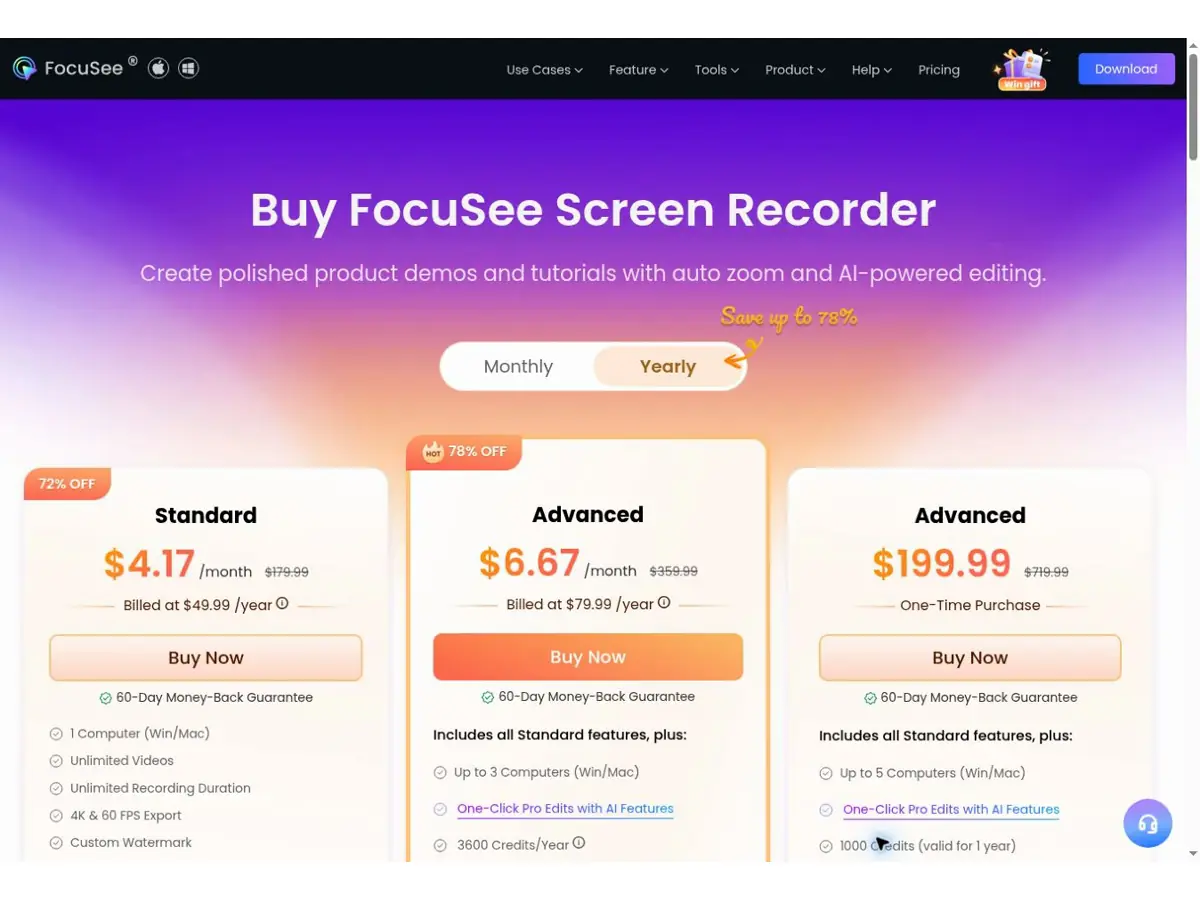
Captured November 4, 2026. The displayed $4.17/month and $6.67/month are annual-plan equivalents; the page states the annual billed amounts underneath.
For irregular work, monthly billing reduces the length of the commitment. For work that continues, compare the amount actually charged. At the listed Standard prices, three monthly payments total $59.97, exceeding one $49.99 annual payment. That arithmetic does not make an annual purchase sensible if you only need the app for one month.
The three- and five-computer allowances describe devices in the offer. They should not be rewritten as three or five separate team seats without checking the licensing terms. If several people will use the product, ask for the appropriate business arrangement.
Does a FocuSee lifetime deal include every future version?
No. The current pricing page describes the one-time offer as lifetime access to FocuSee 2.x and says a later major upgrade can have an additional charge. It also distinguishes the initial AI credit bundle from continuing software access. Subscription users receive version upgrades during the subscription.
At today's listed prices, $199.99 is about 2.5 times the $79.99 Advanced annual price. That is a license-price comparison, not a full break-even calculation: the device count, future versions and AI allowances are different. The one-time option is attractive only if those terms fit your expected use.
Historic lifetime promotions may have different entitlements. Before buying a reseller deal, check the major version, device allowance, included AI, upgrade policy and redemption conditions. A discount percentage alone tells you very little about whether the offer is suitable.
AI credits: what is included, what expires and what costs extra?
The current plan terms list no included AI credits for Standard. The Advanced subscription includes 300 credits per month; its annual total is issued monthly rather than as one immediate pool. Those monthly credits expire after a month. The listed lifetime bundle includes 1,000 credits with one-year validity.
The AI credit FAQ gives these processing rates:
| Feature | Published rate | A 10-minute input at that rate |
|---|---|---|
| Advanced AI subtitles | 1 credit/minute | 10 credits |
| Silence and filler removal | 1 credit/minute | 10 credits |
| Vocal enhancement | 4 credits/minute | 40 credits |
| AI avatar | 150 credits/minute | 1,500 credits |
The last column is an illustrative calculation, not a measured bill. Actual processing duration, rounding and repeated runs can affect usage. The FAQ says purchased top-up credits last one year and distinguishes audio noise reduction and camera-background removal from the extra-credit functions.
As a budgeting example, assume a ten-minute tutorial is separately processed and charged for advanced subtitles, fresh Smart Cut recognition and vocal enhancement. The listed rates total 60 credits, so 300 credits cover five such separately billed runs. This is not a mandatory cost per tutorial: the Smart Cut guide allows reuse of existing subtitles without another recognition charge. If your workload arrives in one busy month and you do little the next, expiring monthly credits are more significant than the advertised annual total.
Avatars change the calculation sharply: 300 credits correspond to two minutes at the stated avatar rate. A plan that feels generous for captions can therefore be small for avatar-heavy production. Decide which AI operations you will actually repeat before choosing the plan.
The purchase FAQ also lists top-up bundles of 500 credits for $14.99, 1,000 for $29.99, 3,000 for $39.99 and 6,000 for $79.99. Check the active offer before paying. Purchasing a larger bundle is not automatically economical when credits can expire before you use them.
Refunds, cancellation and moving to another computer
The pricing FAQ states that refund requests may be submitted within 60 days for a one-time or annual purchase and within seven days for a monthly plan, subject to the refund policy. It says consumed AI credits are deducted from a refund. That is an application window, not a guarantee that every request qualifies. The refund FAQ links to the policy and request form.
Cancellation prevents a subscription from renewing; the pricing terms say current-period benefits continue until that billing period ends. An account or order obtained through a different store should be handled through the relevant purchase route. For moving a license to a replacement computer, consult the activation and order FAQ, which documents contacting support to unbind an old device and limits that transfer option.
Practical FocuSee troubleshooting
FocuSee not recording audio: what to check
First check whether the problem affects the microphone, system audio, or both. Confirm the intended source was selected before recording, then inspect the corresponding Mute control in the editor. Those controls operate separately, so a silent preview does not automatically mean the source was never captured. Recording setup · Audio controls
On Windows, FocuSee’s instructions require microphone access for apps and desktop apps, followed by restarting the software. On Mac, grant the required permissions and restart. The guide says macOS 13 and later can record audio without an additional driver, while earlier versions require one. Follow the instructions for your OS rather than installing a driver indiscriminately. Permissions guide
These checks address source selection, permissions, and muting. They cannot promise recovery of a track that was never recorded.
FocuSee audio and video out of sync: isolate the cause
FocuSee’s support FAQ identifies heavy CPU or memory use and intermittent audio-source frame drops as possible causes of desynchronization. It recommends checking a screen-plus-system-audio recording and trying another webcam or microphone. Technical troubleshooting
Use that sequence to narrow the problem. If the simpler recording stays synchronized, add the other inputs back individually and note when the drift appears. This is a diagnostic process, not a guaranteed repair for an existing export. Preserve the original project if support needs to examine it.
Why FocuSee cannot open or import a video
For an external video, verify H.264 encoding as well as the MP4 container. FocuSee’s import checklist also calls for an intact file, sufficient storage and memory, and the latest application version. Renaming a file does not convert its codec. If an existing FocuSee project will not reopen, preserve that project and contact support; the MP4 import workflow is not a documented project-recovery tool. Import troubleshooting
A paid account still shows Free
Check the exact purchase email against the account currently signed in. The activation guide documents a Refresh control for updating purchase status after an in-app purchase. Partner-issued activation codes have a separate entry route through the user avatar. Activation guide
Also check the licensed major version. The activation FAQ distinguishes older Version 1.x benefits and recommends restarting, checking the application version, and retrying with the purchase email. If the checkout email was entered incorrectly, provide the order ID and purchase evidence to support.
For readers who purchased through the Chinese storefront, the regional-version guide documents separate Chinese and international authorization systems. The installed client must match the entitlement. A Free label therefore does not, by itself, prove that a paid license has disappeared.
Export stalls or remains on a loading screen
For export failures, the official FAQ recommends restarting, updating, changing the destination folder or drive, and trying a lower output resolution. Reducing a 4K export to 1080p is one suggested diagnostic step. If the problem remains, support asks for logs and the project file. Export troubleshooting
Keep a copy of the project before repeated troubleshooting. A smaller successful export can help identify a configuration or resource problem, but it does not establish the cause by itself.
How to save and back up FocuSee projects before reinstalling
Before removing the application:
- Save the editable project and locate it through File / History > Open in folder.
- Copy the project and its associated folder to another location. Keep essential source recordings; Extract source files can retrieve camera, audio, and video files.
- Verify that the saved project opens before proceeding.
The location and extraction controls are documented in the project-support guide and export guide. This backup sequence is a precaution: the reinstall FAQ does not guarantee that every project survives uninstalling.
For unresolved problems, use Send Feedback and include your OS, application version, capture configuration, and a short reproduction. FocuSee’s support guide specifically recommends a smaller example when the original project contains sensitive information or is too large to share.
FocuSee alternatives: which tool fits your workflow?
The useful comparison is the entire job: capture the screen, correct the recording, prepare the right format, and get it to the person who needs it. A recorder that suits a polished launch video may be a poor fit for daily customer-support messages. The comparisons below use documented capabilities rather than measured performance rankings.
| Decision | FocuSee | Screen Studio | Tella |
|---|---|---|---|
| Primary reason to investigate | Desktop demo editing with flexible license terms | Mac demo production and framing controls | Recording, editing and hosted delivery together |
| Platform starting point | Windows or Mac; separate online tool | Mac | Browser, Chrome extension, Mac or Windows |
| The useful trial task | Correct auto zoom, check audio and export | Reframe the same Mac demonstration | Share, revise and review the same video |
| Buying question | Version rights, devices and AI credits | Fit for your Mac workflow and current plan | Per-user billing, hosting features and AI allowances |
Platform and feature references: FocuSee, Screen Studio and Tella. The fit assessments are our analysis.
FocuSee vs. Screen Studio
Screen Studio is a close comparison for Mac users who want carefully presented product demos. Its official site describes automatic and manual zoom, cursor smoothing, editable camera layouts, transcript editing, and reframing for different aspect ratios. FocuSee also advertises automatic zoom and cursor effects, so the existence of those features alone does not settle the choice. (Screen Studio; FocuSee)
The more useful questions concern control. When a menu opens near the edge of the screen, does the suggested zoom keep the important items visible? Can you correct an awkward camera placement without rebuilding the sequence? When a horizontal demonstration becomes a vertical clip, how much manual adjustment remains?
Compare the same source task in both tools, paying particular attention to small text, multiple windows and the corrections needed before publication. Those observations are more useful than comparing the length of two feature lists.
Platform availability can simplify the decision. Screen Studio's official site presents it as a macOS recorder; FocuSee's site lists Windows and macOS. A Windows buyer should establish compatibility before comparing visual effects. (Screen Studio; FocuSee)
FocuSee vs. Tella
Tella deserves particular attention when sharing and review are part of the task. Its documented workflow combines recording, AI-assisted editing, hosted video pages, embedding, and viewer analytics. It offers a browser recorder, Chrome extension, and native Mac and Windows apps. Auto Zoom, Auto Layouts, transcript editing, and Studio Voice mean it also competes on producing a polished recording. (Tella product overview)
Consider a founder explaining a new customer dashboard. The job is unfinished when the video looks good: customers still need a working link, the help center may need an embedded player, and the founder may want to know whether viewers watched the explanation. Tella's pricing matrix lists hosting, embedding, comments, reactions, call-to-action buttons, and analytics, with access varying by plan. These are meaningful comparison points if they match your delivery process. (Tella plans)
FocuSee also has cloud sharing and password controls. Compare the complete delivery process: how you replace an outdated tutorial, receive feedback and manage access. If your existing website or channel already handles distribution, additional hosting features may contribute less value.
At our November 4, 2026 research check, Tella's pricing matrix listed Pro at $13 per user per month billed annually and Premium at $19 per user per month billed annually. Compare the full billing commitment and number of users, rather than treating those figures as monthly-plan prices. (Tella plans)
The plan distinction also matters. Tella lists custom domains, removal of Tella branding, 60 FPS export, and advanced analytics among Premium additions. The pricing page separately describes credits for the Tella Agent and Auto Capture. Confirm the particular features and allowances you need rather than assuming that a paid seat includes every service without limits. (Tella plans)
For a fair trial, time the complete journey from recording to a video a colleague can open. Then make one correction and replace the published version. That second task often reveals workflow friction that a first export misses.
Camtasia, Loom, OBS Studio, and Screenity
These alternatives answer different needs. Use the following distinctions to narrow the shortlist before comparing individual effects.
| Alternative | Documented capabilities worth comparing | When to investigate it |
|---|---|---|
| Camtasia | Separate screen, camera, microphone, and system-audio layers; imported media; captions and customizable editing. (Official overview) | A course or training project that requires substantial revision, several source clips, or detailed control over individual elements. |
| Loom | Recording, trimming and stitching, share links, embeds, comments, tasks, CTAs, and viewer insights. (Official overview) | Frequent support replies, internal explanations, or feedback where recipients' responses are part of the work. |
| OBS Studio | Free, open-source recording and streaming with configurable sources, scenes, audio mixing, and plugins. (Official overview) | Live production, multiple capture sources, or a workflow where recording control takes priority and editing happens elsewhere. |
| Screenity | A free, open-source Chrome recording extension, with a separate paid cloud editing and sharing platform. (Official overview; source repository) | Browser-centered recording and annotation, with a decision about whether the paid editing and sharing workflow is necessary. |
Avoid judging every option against the same checklist. A training team may benefit from deeper editing and reusable assets; a support agent may care more about getting a clear answer to a customer quickly. Screenity also illustrates why “free alternative” needs qualification: its recorder extension and hosted platform have different access conditions.
What FocuSee users reported: dated Setapp examples
These selected Setapp reviews concern the Mac app. They are individual reports, not a Windows performance test or a representative reliability survey.
- Sean m — May 16, 2026; version 2.3.2: valued the tutorial workflow but reported editing crashes and occasional lost work. The developer requested details on May 27; the entry does not confirm a fix.
- Kamilo — April 3, 2026; version 2.2.0: liked zoom and cursor controls but reported wallpaper edges in window captures. On April 30, the developer acknowledged clean window framing can be limited in some cases.
- Stefan Fischer — April 19, 2026 update; version 2.3.1: said macOS Tahoe improved an earlier dual-monitor mouse-lag problem. The positive update matters when interpreting the original complaint.
- Robert Meerman — January 31, 2026; version 2.2.0: a first-time creator found the app easy to learn and was pleased with the first result.
Use these reports to choose trial checks, especially capture framing, editing stability, and your display setup. They do not establish a current failure rate.
Privacy, local processing and cloud sharing
FocuSee's product FAQ says recordings are stored and processed locally. That describes a useful default, but it is not enough to conclude that every feature works without a network connection. The AI subtitle guide separates a local model from an advanced model, and the guide index describes the advanced subtitle route as online. Sharing a hosted link is also different from saving a file on your own drive.
For an ordinary product demo, local export may be all you need. For a recording containing client information or internal dashboards, decide which data can enter an online service before enabling that operation. The sources reviewed here do not establish feature-by-feature retention periods, processing locations or model-training treatment. Those questions need the applicable policy or a specific answer from the vendor.
The distinction also affects editing: hiding text in a final video does not establish what data an earlier AI operation received. Use demonstration data where possible, keep credentials out of the recording, and inspect the complete exported video after masking sensitive areas. Those are practical workflow precautions rather than claims of a special FocuSee security feature.
A practical way to judge FocuSee on your own computer
Published features tell you what to evaluate; your normal task tells you whether the product earns its cost. Record one short sequence containing the actions you repeat: a small menu, text entry, a scroll, a pop-up result and your usual narration. Use the same task if you compare another recorder.
Pay attention to three separate outcomes. First, is the action understandable without your explanation of what went wrong? Second, how much correction is needed after automatic processing? Third, does the exported file still look and sound right outside the editor?
| Check | What a useful result looks like |
|---|---|
| Zoom and framing | The control and the resulting change remain visible; the viewer keeps enough context. |
| Small text | Labels, code or numbers are readable at the size your audience will watch. |
| Audio | The intended sources are present and stay synchronized. |
| Captions | Product names and technical terms can be corrected without excessive work. |
| Reuse | A saved project reopens and can be revised; another aspect ratio does not hide key content. |
| Overall effort | Time spent correcting effects is justified by the improvement in the delivered video. |
For a Mac comparison, use your actual monitor arrangement. For a Windows comparison, include any application you normally run with special permissions. If courses are your main output, add a longer recording before committing to a recurring production workflow.
Frequently asked questions
Is FocuSee AI really good?
Its documented feature set is well matched to software demos and narrated tutorials. Whether its AI is good for you depends on the correction effort for your speech, terminology and recording style. Local captions, advanced captions and audio enhancement are different operations with different costs. There is no independent accuracy or speed benchmark in this review.
Is FocuSee completely free?
The desktop trial and FocuSee Online have different terms. The desktop FAQ allows one watermarked export; the online page advertises a free watermark-free browser recorder. “Free download” does not mean unlimited use of every desktop feature. See the desktop FAQ and online tool.
Can I use FocuSee without a Chrome extension?
The online recorder page describes a browser workflow without a software download, while the desktop app is installed separately. An extension is not presented as a prerequisite for those routes. This review does not establish that an extension found under a similar name is an official FocuSee product.
Is FocuSee open source, and where is its GitHub repository?
The official product material presents a commercial product; the documentation reviewed here did not establish an open-source license or an official public source repository. A GitHub search result alone does not establish either. If access to source code is a requirement, compare the verified open-source alternatives described above.
Does FocuSee have an MCP integration?
The official documentation reviewed for this article did not establish a FocuSee MCP integration. If automated capture or agent access is essential, request current integration documentation before purchasing.
Can I edit a video recorded in another application?
Yes. The current import guide supports creating a project from an H.264-encoded MP4. Do not assume an imported flattened video contains the original recorder's separate cursor, camera or input data.
Can I recover editable work after reinstalling FocuSee?
Preserve the native project and relevant assets before uninstalling. An exported MP4 is a finished video, not a substitute for all editable project information. The project history guide documents locating and reopening saved projects, but the material reviewed here does not guarantee recovery of missing or corrupted files.
Why does a paid FocuSee account show the free version?
Check that the login email matches the purchase, refresh the purchase status where available, and verify that the installed major version matches your entitlement. Regional-client or store differences can also require support. The activation FAQ is the appropriate starting point; the status alone does not prove your purchase was revoked.
Is FocuSee better than Screen Studio or Tella?
There is no universal winner. Screen Studio is a direct comparison for Mac-based demo production. Tella deserves attention when hosted delivery, collaboration and viewing analytics are part of the job. FocuSee is worth shortlisting when its desktop editing workflow and licensing model match the videos you make. Compare the finished task, not the number of features on a landing page.
Final verdict: is FocuSee worth paying for?
FocuSee makes the most sense when you repeatedly turn software interactions into polished explanations. Automatic zoom, cursor control, styling and focused editing belong together for that job. A founder publishing feature demos or a creator explaining an application can reasonably put it on the shortlist.
The reservations are specific. The desktop free offer has an export limit. A lifetime license does not mean every future major version or unlimited AI. Imported video and phone capture do not necessarily have the same editing information as a native desktop recording. Audio, display arrangement and long-project reliability deserve a trial using your real setup.
If you need an occasional free recording, start with the online tool or a free recorder. If your priority is hosted feedback and analytics, compare Tella or Loom. If you need extensive editing control or live-production sources, examine the relevant Camtasia or OBS workflow.
For everyone else, the sensible next step is a small, meaningful trial: record the feature you need to explain, correct the output and inspect the export. Choose Standard, Advanced or a one-time license only after the actual workflow and AI budget are clear. That is a stronger reason to pay than a discount banner or an unqualified promise of effortless editing.
Stay at the cutting edge.
Join thousands of AI practitioners receiving our weekly digest on tools and trends.
Share this story
Continue Exploring
More insights from our research team.